- Author: Ahmed Vavdi
Date: Nov 4, 2024 - Category : Video Editing



The right video editor without a watermark saves time and ensures your content looks professional from the first export. However, the struggle to find truly free video editing software for PC without watermark frustrates creators. Many free editors either restrict key features or add watermarks that spoil your videos.
To make your search easier, we’ve tested dozens of tools and curated 15 that are genuinely free and easy-to-use for beginners and professionals alike. Whether you want to edit YouTube videos, social media content, this guide helps you pick the best free video editing software for PC without watermark in 2025.
These 15 editors let you create professional-quality videos on Windows PCs without watermarks.
Discover the top free video editing software for PC without watermark to create professional-looking videos quickly and efficiently. Each editor has unique strengths to match your editing style, skill level, and project requirements.
| Tool | Max Resolution | Export Formats | Unique Strength | Learning Curve | System Requirements |
|---|---|---|---|---|---|
| DaVinci Resolve | 4K | MP4, MOV, AVI | Professional color grading & VFX | Moderate | High |
| CapCut | 1080p | MP4 | Social media templates | Easy | Low |
| OpenShot | 4K | MP4, AVI | Multi-track simplicity | Easy | Low |
| Shotcut | 4K | MP4, MOV | Wide format support | Moderate | Moderate |
| Kdenlive | 4K | MP4, MOV | Proxy editing for large files | Moderate | Moderate |
| iMovie | 4K | MOV | Apple ecosystem integration | Easy | Low |
| Lightworks | 720p | MP4 | Real-time effects | Moderate | Moderate |
| Blender | 4K | MP4, AVI | 3D animation & VFX | Hard | High |
| VideoPad | 1080p | MP4 | Fast basic edits | Easy | Low |
| Clipchamp | 1080p | MP4 | Cloud-based & templates | Easy | Low |
| HitFilm Express | 1080p | MP4 | Advanced VFX | Moderate | Moderate |
| ActivePresenter | 1080p | MP4, AVI | Tutorials & screen recording | Easy | Low |
| Icecream Video Editor | 1080p | MP4 | Simple trims & merges | Easy | Low |
| Avidemux | 1080p | AVI, MP4 | Quick cuts & encoding | Easy | Low |
| Windows Video Editor | 1080p | MP4 | Pre-installed for Windows | Easy | Low |

Now that you’re ready to explore your options, let’s take a look at our list of the top 15 free video editing software for PC with no watermark on your projects.
Each of these tools offers unique features to help you bring your creative ideas to life, whether you’re a beginner or looking to enhance your editing skills.
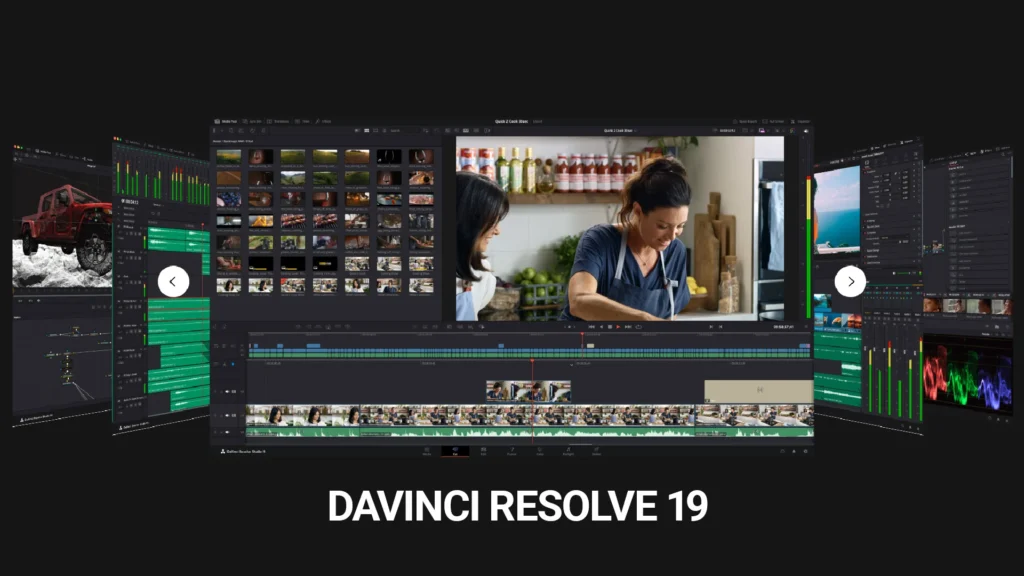
DaVince Resolve 19 combines professional editing, color correction, and visual effects in a single platform. Ideal for filmmakers and content creators seeking studio-quality results.
Most of its features are 100% free and don’t add watermarks, making it a must-try free video editor without watermark for serious projects.
Our Testing Insight:
| Pros | Cons |
| Smooth render performance | Requires high-end system specs |
| An extensive variety of VFX effects and editing controls | Steep learning curve for tool mastery |
CapCut offers easy-to-use templates and one-click effects, perfect for TikTok, Instagram, and short video creators. It’s a lightweight video editor without watermark for PC users and mobile creators.
Our Testing Insight:
Exported a short Instagram Reel quickly without watermark. Templates were handy, though fine-tuning keyframes felt a bit limited.
| Pros | Cons |
| Clean interface with intuitive controls | Frame rate can be upscaled to 60 FPS only |
| Rich library of stock audio and visuals | Glitches in background removal |
| Multiple languages and easy sharing to TikTok | Color grading quality is NOT optimum when compared with other tools |
HitFilm Express combines video editing with compositing and VFX. This makes it an excellent professional-grade free video editor without watermark for cinematic projects.
Our Testing Insight:
The FREE version offers you more than 120 visual effects. You can cut, trim, and crop footage without any limitations. However, if you’re rendering 3D models or plan to import them, know that HitFilm will put a watermark.
| Pros | Cons |
| Multiple layers and motion graphics | Rendering is sluggish |
| Clean, intuitive, and customizable interface | No Caption support |
| FREE Stock library | Too many upgrade buttons in the interface |
Lightworks is another special mention as a free video editor without watermark that offers versatile trimming and transitions to your footage. It remains a top choice among the film and TV industry.
Sharing to social sites is also really easy with this tool. You can also consider this as a video editing software with no watermark, especially if you’re looking for FREE options.
Our Testing Insight:
Testing showed a reliable workflow for smaller projects. The timeline is intuitive, and autosave works well. However, the free version limits export to 720p.
| Pros | Cons |
| Flexibility for editors with abundance of features | Not as intuitive as other tools |
| HD export free | Limited formats without Pro |
Blender is one of the most renowned video editing tools, offering features like sculpting, rigging, drawing, and animation. It includes 3D animation and video editing in one package, making your job easier. Plus, the FREE version has extensive features that you can use without a watermark on your video.
Our Testing Insight:
Testing confirmed it is powerful but requires patience for beginners. Even though the original software had a steep learning curve, the recent updates have made the UI relatively easier for beginners.
| Pros | Cons |
| Strong community for inspiration and bug fixes | The interface is complex for new users. |
| Perfect for 3D modelers and Animators | Managing a project or streamlining different aspects of a job could be tedious |
| Plenty of plugins with exciting features | – |
ActivePresenter is an ideal free video editor without watermark for tutorials with screen capture and annotations. The software provides a range of editing tools, from trimming and cutting to adding annotations, animations, and voiceovers, all with nowatermarks on exports.
Our Testing Insight:
Recording and editing are seamless. Exports are watermark-free. Testing confirmed it is efficient for educational videos. Although it lacks advanced visual effects, its ease of use and functionality make it a top choice for educators, trainers, and anyone needing a free video editing tool.
| Pros | Cons |
| No watermark | Limited creative effects |
| Best free tool to make quick edits | Suddenly crashes and has a few glitches |
| A webcam makes it easier to narrate while recording | Learning curve is steep for newbies |
OpenShot offers simple drag-and-drop editing with unlimited tracks and watermark-free exports. It is great for first-time video editors looking for free video editing software for PC without watermark.
Our Testing Insight:
While testing OpenShot video editing software, we found managing multiple tracks was seamless, though 4K video previews were slightly laggy until playback quality was lowered.
| Pros | Cons |
| Supports multiple languages | Freezing, lagging, and glitches are common |
| Non-linear editor tracking | Not ideal for pros |
| 3D titles and No Watermark | Slower rendering on large projects |
iMovie is a fantastic choice for Mac users seeking free video editor without watermark. Its simple drag-and-drop interface makes it beginner-friendly with essential editing tools like color correction, video stabilization, and background noise reduction.
Our Testing Insight:
Our testing revealed iMovie integrates seamlessly with Apple devices. Also, the timeline editing is smooth and exports easily. It is very intuitive but not suited for multi-cam projects.
| Pros | Cons |
| Simple and attractive interface | No more than two video tracks |
| iPhone-friendly features for integration | Motion tracking is not available |
| Multiple templates | Available only for Apple devices |
Icecream Video Editor is intuitive free video editing software with no watermark for small projects. It supports timeline editing and voice recording, which is ideal for creating video content for social media or personal projects.
Our Testing Insight:
Testing showed that trimming and merging videos is quick. Advanced editing options are minimal.
| Pros | Cons |
| Super cheap video editor | Not suitable for pros |
| Easy to control and edit photos | Lack of professional features |
Avidemux is a lightweight free video editing software without watermarks. It’s ideal for fast trimming and re-encoding while supporting a variety of video formats, including AVI, MP4, and MPEG.
Our Testing Insight:
The interface is minimal and basic. Although Avidemux doesn’t have high-end features like advanced effects or color grading, it’s an efficient choice for quick video editing on a budget.
| Pros | Cons |
| Perfect for executing simple edits | No advanced features with timelines |
| Transcoding is easier for linear video editing | Audio distortion is common when importing files |
| Lightweight and free | Software crashes when working with MP4 files. |
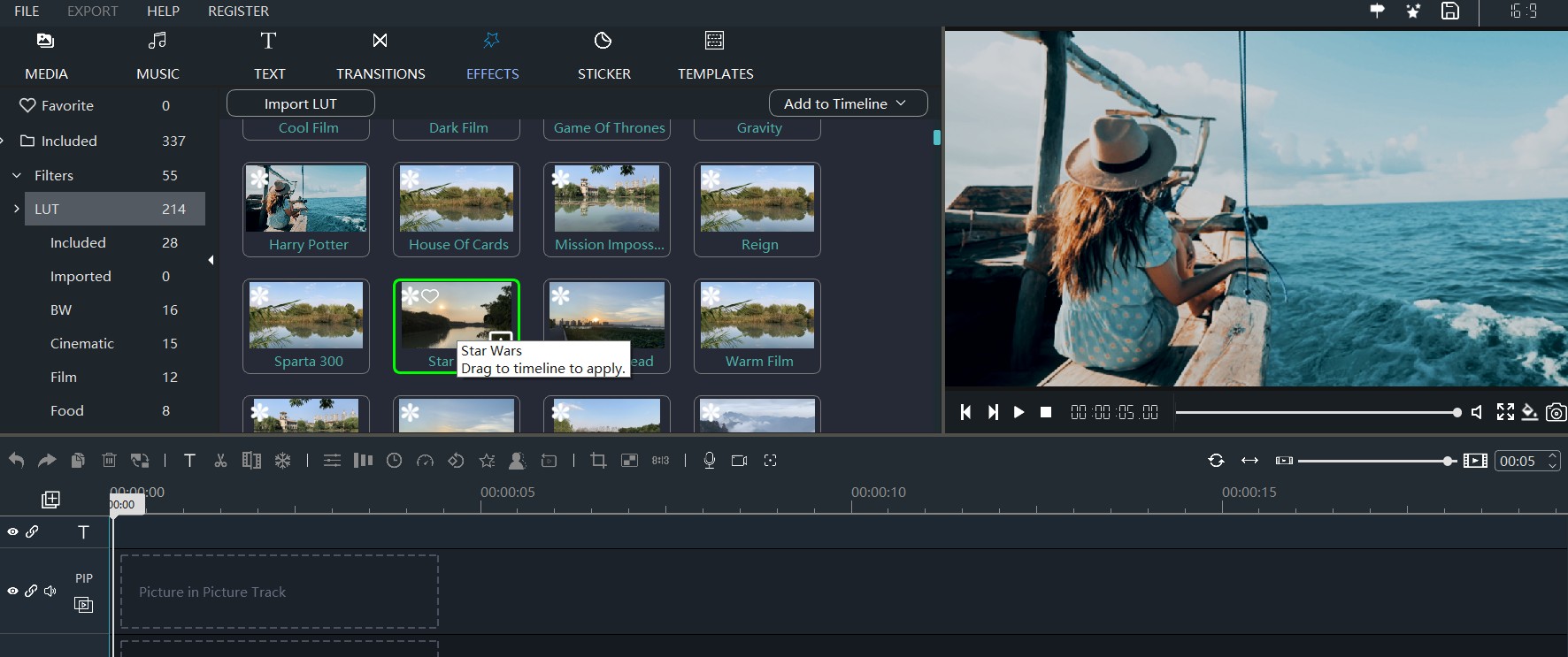
Windows Video Editor is pre-installed and quick for simple edits. This free software offers essential editing tools like transitions, filters, and a storyboard mode, helping users create videos without a watermark. It’s a good fit for those new to video editing, as adding text or trims is easy.
Our Testing Insight:
Testing showed it works well for basic Windows edits. Although it lacks advanced features, Movie Maker’s simplicity makes it a go-to for Windows users looking to produce basic videos with minimal effort.
| Pros | Cons |
| Super easy to use | Key editing features come with the Premium version |
| Perfect for beginners who are new to video editing | Lots of ads on the Free version |
| Pre-installed, no watermark | Can’t save the video without buying the PRO version |
VideoPad is a versatile free video editing software that allows fast trimming and merging with no watermark.
It includes features such as video stabilization, color correction, and a library of visual effects. With VideoPad, you can easily upload completed projects directly to platforms like YouTube.
Our Testing Insight:
Testing confirmed speedy edits for short clips. While audio editing is simple and effective, the limited access to advanced features makes it suitable for small projects.
| Pros | Cons |
| Robust performance and clean design | Customer support is not the best |
| Smooth learning curve | Exporting videos could take an eternity. |
KdenLive is another open-source free video editing software with no watermark, packed with features suited for beginners and professionals alike. It offers multi-track editing with customizable layouts. Proxy editing helps with large files.
Our Testing Insight:
Our testing highlighted fast handling of 4K content with proxy mode. It is more stable on Linux than Windows.
| Pros | Cons |
| Making a video montage is easy | Slow in performance |
| User interface is intuitive | Professional features are below par |
| Packed with sets of advanced transitions and effects | – |
Shotcut is an open-source editor with no watermark offering an extensive range of tools, including color grading, audio filters, and video effects. The software supports a wide variety of video formats and a customizable workspace for user comfort.
Our Testing Insight:
Chroma key setup is fast and effective. The interface is slightly dated but fully functional. Testing showed clean green-screen results with a manageable workflow. Shotcut is user-friendly, but those seeking advanced VFX or motion tracking might find it limited.
| Pros | Cons |
| Full HD support with multiple transition effects | You don’t get a preview option for transitions and effects |
| Quick installation with drag and drop features | Lags when transition effects are applied to the footage |
| Free with customizations | – |
Clipchamp provides browser-based video editing that is highly convenient for social media content creators. The editor offers pre-built templates, drag-and-drop text overlays, and access to a stock library of images, videos, and audio tracks.
Its cloud-based platform allows you to start a project on one device and continue on another seamlessly. The platform is excellent for quick edits and collaborative projects, though uploading very large files may take longer.
Our Testing Insight:
Testing showed smooth exporting of 1080p videos and a user-friendly interface for beginners and casual editors. Clipchamp is a perfect solution when speed, convenience, and watermark-free outputs are essential.
| Pros | Cons |
| Cloud-based | Upload speed can be slow for large files |
| Easy collaboration | Advanced effects limited |
We evaluated each software based on:
Tip: Always check system requirements to ensure smooth editing to create professional-quality promotional or social media videos without hassle. Using the best free video editing software for PC without watermark can dramatically improve your workflow.
Finding the best free video editing software for PC without watermark is about more than just picking a popular tool. Consider these key points to choose the editor that fits your needs:
Following these video editing tips for the right pick, saving time, and producing professional-looking content every time.
Choosing the right free video editing software for PC without watermark depends on your needs, skill level, and project type.
Professionals may prefer DaVinci Resolve or Lightworks for advanced features, while social media creators find CapCut and Clipchamp efficient with fast exports. Beginners can start with OpenShot or iMovie for a smooth learning curve.
Using the right tool ensures polished videos without annoying watermarks. At BuzzFlick, we offer dedicated video editing services that complement these free tools, helping creators enhance content faster and manage projects efficiently from start to finish.

Yes. Some free video editors let you create videos without watermarks, so your content looks clean and professional without any distracting branding. You can trim, merge, and add effects while keeping the exported videos watermark-free.
Several editors are fully free with all core features. Options include DaVinci Resolve for professional-grade editing, CapCut for user-friendly tools and trending effects, Clipchamp for browser-based editing with AI features, iMovie for Mac users, and open-source editors like OpenShot and Kdenlive.
The best choice depends on your needs. DaVinci Resolve is ideal for professional projects, CapCut offers user-friendly and AI-powered editing, OpenShot suits beginners, and Clipchamp works well for quick, simple video tasks.
No, CapCut no longer allows watermark-free exports entirely for free. While the basic version offers many features, removing the watermark now requires a subscription to CapCut Pro.

Learn about video editing costs based on style, complexity, and duration. Explore the factors that can affect your editing cost and get it done efficiently.
Read More
Get A Custom Quote Now


Copyright © Buzzflick 2026, All Rights Reserved.
Get Video Animation at Reasonable Prices at BuzzFlick! Get A Quote!